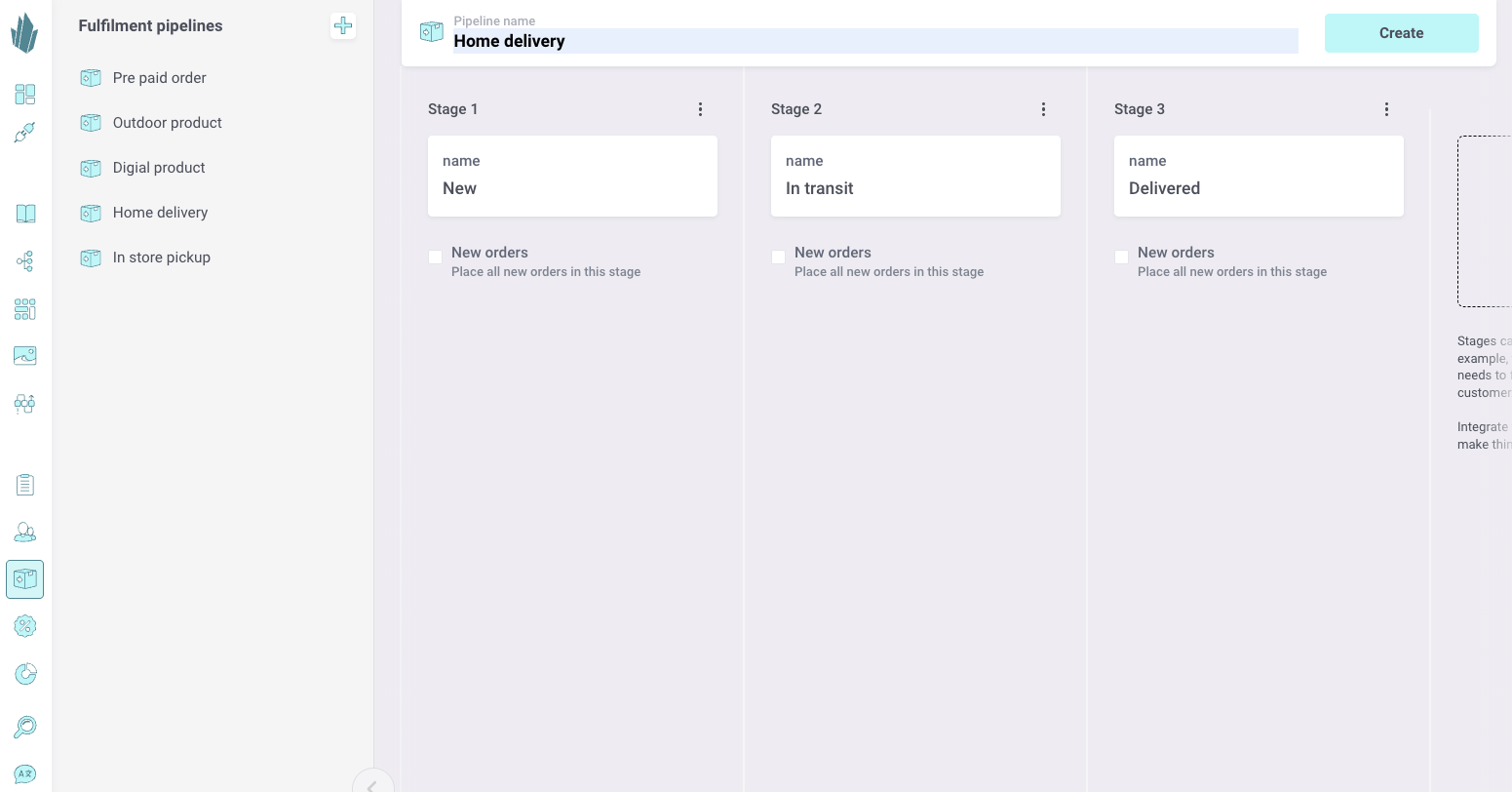
Fulfilment pipelines
Fulfillment pipelines in Crystallize let you define and manage how orders are processed after they are created. Pipelines represent workflows such as home delivery, in-store pickup, or digital product delivery. Each pipeline is divided into stages, which represent the steps of your order processing.
Orders can belong to one or more fulfillment pipelines. Typically, this assignment happens programmatically as part of the checkout process, but you can also manage pipelines manually through the Crystallize App.
Working with Fulfillment Pipelines
Fulfillment pipelines give you a visual and structured way to manage the progress of orders. Each pipeline is made up of stages that represent steps in your business process, such as New, Picking, In Transit, or Delivered.
When you open a pipeline, you see a board-style overview where each stage is represented as a column. Orders appear as cards inside the stage they currently belong to.
Managing Orders in Pipelines
- Drag and Drop
Move orders between stages by dragging and dropping them. This provides a simple way for your operations team to update the status of an order in real time. - Click to Update
Open an order to view its details and change its stage using the dropdown. This is useful if you are already inside the order details view. - Multiple Pipelines
Orders can be placed in more than one pipeline if needed. For example, an order could be in a Digital Delivery pipeline and at the same time in a Customer Support pipeline if the workflow requires it. - Automatic Assignment
Orders can be programmatically assigned to a pipeline during checkout, ensuring that each new order immediately enters the correct workflow without manual steps.
Typical Use Cases
- Physical product delivery: Pipeline stages might include New, Packed, Shipped, Delivered.
- Digital goods: A simpler pipeline like New → Delivered.
- In-store pickup: Stages such as New, Picking, Ready for Pickup, Picked Up.
- Custom processes: Build pipelines that reflect your business operations, such as returns handling or subscription box preparation.

Viewing Order Details in Pipelines
Clicking on an order inside a pipeline opens the Order Details view. Here you can:
- See all customer and order details.
- Inspect products, quantities, and totals.
- Check the current stage and move the order to another stage.
- Track which pipeline(s) the order belongs to.

Creating a New Fulfillment Pipeline
- Click the + icon in the Fulfillment Pipelines section.
- Enter a name for the pipeline (e.g. Home Delivery).
- Add as many stages as you need and give each a descriptive name (e.g. New, In Transit, Delivered).
- Save to make the pipeline available for new orders.