
Discovery search queries
The search query is ideal for retrieving data from items with multiple shapes in Crystallize. Like browse queries, it provides a fully semantic API where the response structure mirrors the naming of your shapes and components.
The key difference is that search queries retrieve results across all shapes. Since the returned hits can be of different types, you must handle them using inline fragments to structure the response accordingly.
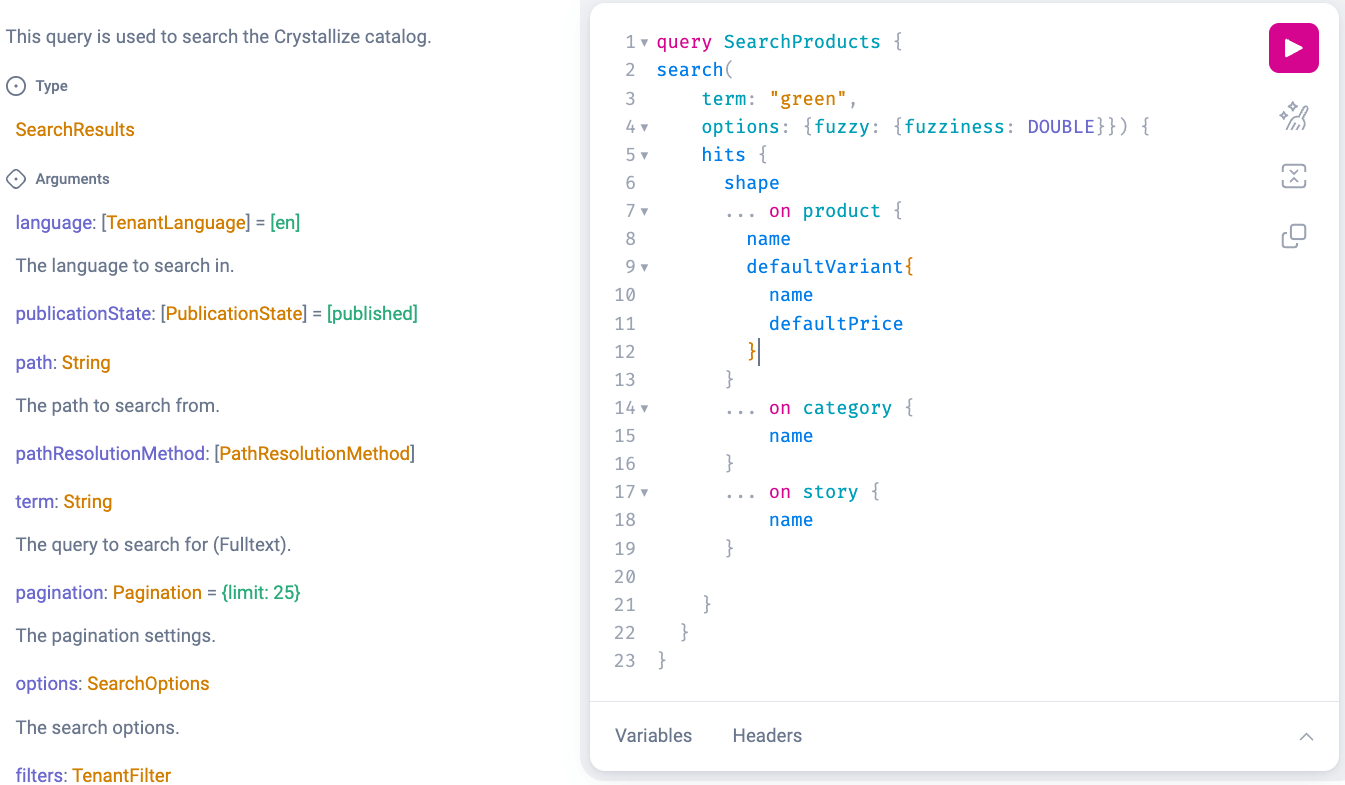
Search query
The Search query runs a full-text search across your whole catalog. Unlike Browse, which is scoped to a single Shape (Shape-first), Search spans every Shape at once and returns a mixed list of items ranked by how well they match the search term.
Pass the query string in the term argument. Because hits can be of different Shapes, the result list is polymorphic: use a GraphQL inline fragment per Shape (for example ... on product or ... on category) to select the fields you need from each. Every hit also exposes a shape field so you can tell which Shape it is.
To narrow Search to a subset of items, add filters — for example type_in to limit by item type (product, document, folder).
Relevance and ranking (rankBy)
By default, Search orders hits by full-text relevance — a BM25-based score that rewards items whose indexed content best matches the term.
Use the rankBy argument to go beyond pure text relevance and blend several weighted signals into a single score (finalScore = Σ weight × signal). Each entry in terms picks one signal and a weight; positive weights boost, negative weights penalize. The available signals are:
- relevance — the full-text match score (needs no extra parameters).
- recency — freshness via exponential time-decay on a date field; set field and halfLifeDays.
- fieldBoost — uses a numeric field (such as a popularity or curated-rank value) directly as a boost.
- inStockBoost — a binary boost that contributes 1 when the named numeric field is greater than 0 (it ignores quantity).
- tasteCosine — personalization/similarity via cosine similarity to a vector; set vocabulary and from (see Personalization and similarity below).
Set a tieBreaker field (commonly itemId) so items with equal scores keep a stable, deterministic order across pages, and pass explain: true to get a per-term breakdown of each hit's score while tuning weights. By default, relevance and fieldBoost are min–max normalized across the result window (so large magnitudes don't dominate), while tasteCosine, recency and inStockBoost are left as-is; override per term with normalize.
Typo tolerance (fuzzy search)
Search is exact by default. Enable typo tolerance through options.fuzzy to also match terms that are a few character edits away from the query (for example "gren" matching "green"):
- fuzziness — the maximum number of single-character edits allowed: NONE (default, exact), SINGLE (one edit) or DOUBLE (two edits).
- prefixLength — number of leading characters that must match exactly before fuzzy edits apply (default 0).
- maxExpensions — the maximum number of term variations to generate and search for (default 50).

Fuzzy matching is opt-in
With fuzziness set to NONE (the default), Search matches the term exactly. Raising fuzziness widens the candidate set and can increase latency, so prefer SINGLE before DOUBLE and use prefixLength to keep short, common terms precise.
Personalization and similarity
Personalize ranking by sending the shopper's taste in context.userTaste — one entry per vocabulary, each a sparse vector of weighted dimension keys (for example "color:red"). Items are scored by cosine similarity between their stored vector and the supplied taste, and the per-vocabulary scores are summed, so items matching the shopper across more vocabularies rank higher. When supplied without rankBy, results are reranked toward that taste automatically.
For "more like this", use nearestTo to rank by similarity to an anchor item's own stored vector instead of a supplied taste. Identify the anchor by sku or itemId (exactly one), choose the vocabulary, and set k for how many neighbours to return; the anchor itself is excluded from the results.
For finer control, reference either source from rankBy: add a tasteCosine term with from: userTaste or from: nearestTo to blend personalization or similarity with relevance and the other ranking signals.
Filtering, faceting, sorting and pagination
Filtering, faceting, sorting and pagination work the same in Search as in Browse. For the full reference on each mechanism, see the Browse queries page.
Two behaviors are specific to Search. First, when results are reordered by rankBy, personalization (context) or nearestTo, that ranking is applied within a bounded window of the top text-search matches; any sorting you supply is applied after the ranking score. Second, paginate with limit and skip, or with the cursor tokens after and before; the summary returns totalHits, hasMoreHits and an endToken to use as the next after.

Pagination with reranking
When results are reranked (rankBy, context or nearestTo), cursor-based pagination falls back to offset pagination (skip/limit) within the rerank window. Use skip and limit to page through reranked results.